How to Create an Invoice: Step-by-Step Guide
Turn completed work into a clear payment request. Follow eight practical steps, check a worked example, and create a PDF invoice without signing up.
On this page
An invoice tells a customer what they owe, why they owe it, and how to pay. A useful invoice should make sense to someone who was not involved in the project: an accounts-payable colleague should be able to match it to the work, approve it, and arrange payment without an email exchange.
You do not need a complicated accounting workflow to create your first invoice. Gather the agreed price and billing details, give the document a unique reference, and check the dates and total before sending it. The steps below apply to a straightforward service invoice; local tax and document requirements still need a separate check.
1. Confirm what you are billing for
Start with the contract, accepted quote, purchase order, or written agreement. Check the agreed scope, rate, currency, and billing milestone. If the client ordered a fixed-price project, do not unexpectedly switch to hourly billing on the invoice.
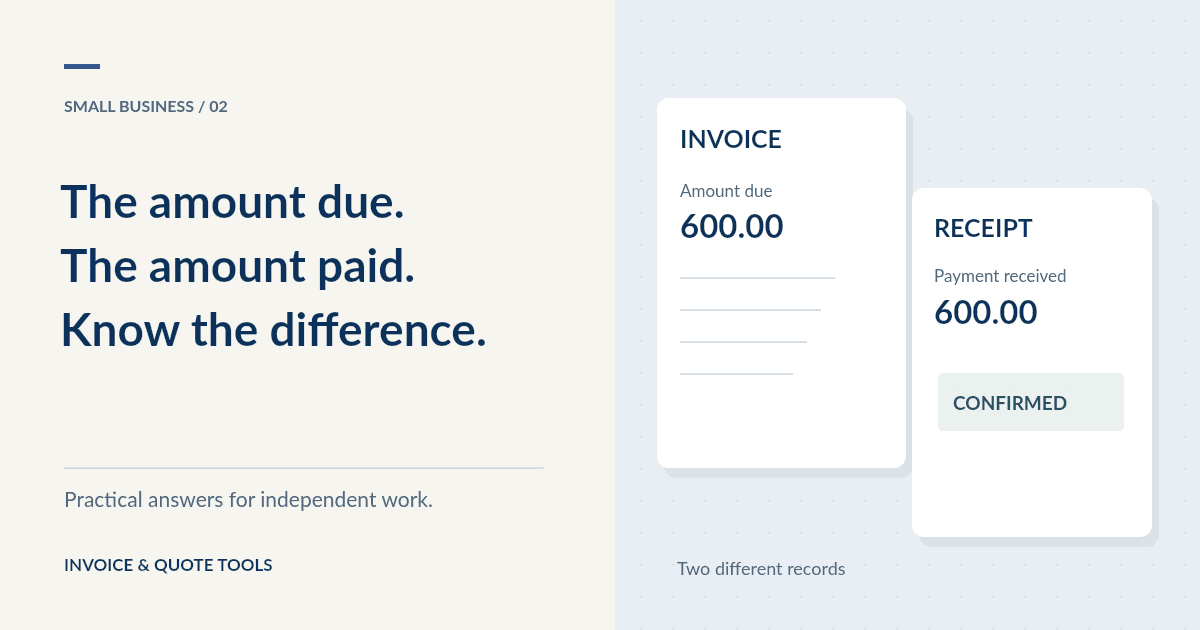
For a project with a deposit, identify whether this document requests the deposit, a milestone, or the remaining balance. Keep a record of money already received and make the balance clear. An invoice is a payment request, not proof that the customer has paid; see invoice versus receipt for that distinction.
2. Add the business and customer details
Use the name of the person or business actually supplying the work, together with the appropriate address and contact details. Ask the customer for their billing entity, billing address, and invoice contact. A familiar trading name may differ from the legal entity that approves payment.
A practical invoice checklist includes:
- Your business identity and contact details.
- The customer's billing identity and address.
- A unique invoice reference and issue date.
- A description of the goods or services and when they were supplied.
- Quantities, rates, currency, applicable tax and any agreed discount.
- The total due, payment deadline and payment instructions.
If procurement requires a purchase order or project code, ask for it before sending. In our editor, a custom field can hold that reference. Do not place confidential client information in a public file name.
Check the rules for your location
The checklist is a starting point, not a universal legal template. GOV.UK lists required invoice information, with additional conditions for different business types and VAT invoices. The European Commission explains EU VAT invoice requirements, including situations involving national rules.
For Canadian supplies, consult the CRA's GST/HST guidance. The appropriate treatment depends on the transaction and place of supply. In the United States, check the applicable state and local sales-tax authority rather than assuming every service is taxed alike.
3. Choose an invoice number
Use a reference you can locate again. For example, 2026-014 can identify the fourteenth invoice in your chosen annual sequence. Record the reference in your own register before sending the document, and avoid assigning it to a different invoice later.
A client code can help internal organization, but it should not replace any sequence required in your jurisdiction. Decide on one system early, especially if more than one person sends invoices. Our free generator lets you enter the reference manually; it does not maintain a business-wide numbering register or automatically prevent duplicates.
4. Enter clear dates and payment terms
Distinguish the issue date from the service date and the payment due date. Where needed, describe the service period in the line item or a custom field. Use an unambiguous written deadline such as “16 November 2026,” particularly when working internationally.
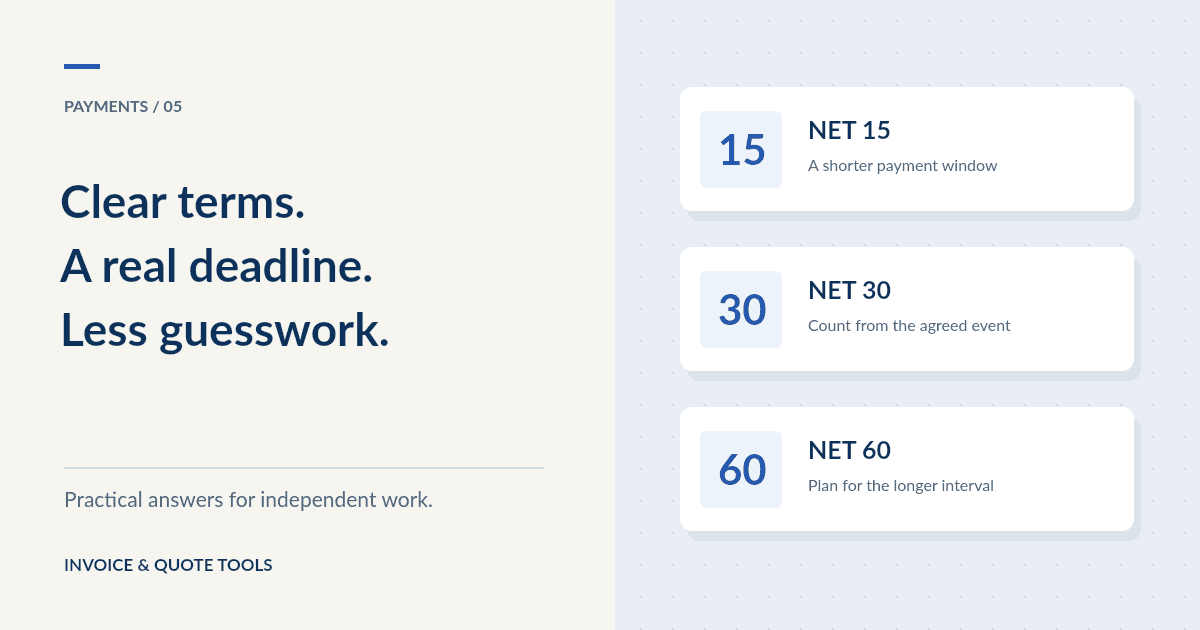
Agree terms before the work begins. “Net 15” commonly means payment of the full amount within 15 days of the agreed starting event, often the invoice date. Write that event and the actual deadline together so the client does not have to interpret them. Our payment terms guide includes date examples and conditional discounts.
5. Describe the work and enter prices
Give each charge enough context to identify the deliverable. “Design work” is vague; “Landing-page design, approved November milestone” identifies the project and stage. For hourly work, show the hours and rate. For fixed-price work, a quantity of one with the agreed fee is often clearer than invented hourly figures.
Use one currency consistently and identify it by its code when a symbol could be ambiguous. USD, CAD and AUD all use dollar symbols. Do not silently convert a price into another currency; agree the currency and any exchange-rate arrangement with the client.
6. Check discounts, tax and the total
Apply only the discount you agreed. Confirm whether it is a fixed amount or a percentage. A conditional early-payment offer is different from an immediate discount: describing “2% if paid within 10 days” does not mean the invoice should already show a reduced balance.
Tax is not a decoration to make an invoice look official. Confirm whether you should charge it, at what rate, and on which amounts. Our generator applies one global tax percentage after the selected discount. It does not determine tax obligations or support line-by-line tax rates. If your invoice needs mixed rates, compound taxes, or a specific reporting format, use a workflow that represents those requirements correctly.
Worked invoice example
This is an illustrative calculation in USD. The 5% tax is fictional for the example, not a recommendation for any location.
| Charge | Quantity | Rate | Amount |
|---|---|---|---|
| Website implementation, November milestone | 10 hours | USD 75.00 | USD 750.00 |
| Handover documentation | 1 | USD 250.00 | USD 250.00 |
| Subtotal | USD 1,000.00 | ||
| Agreed 10% discount | −USD 100.00 | ||
| Illustrative 5% tax on USD 900.00 | USD 45.00 | ||
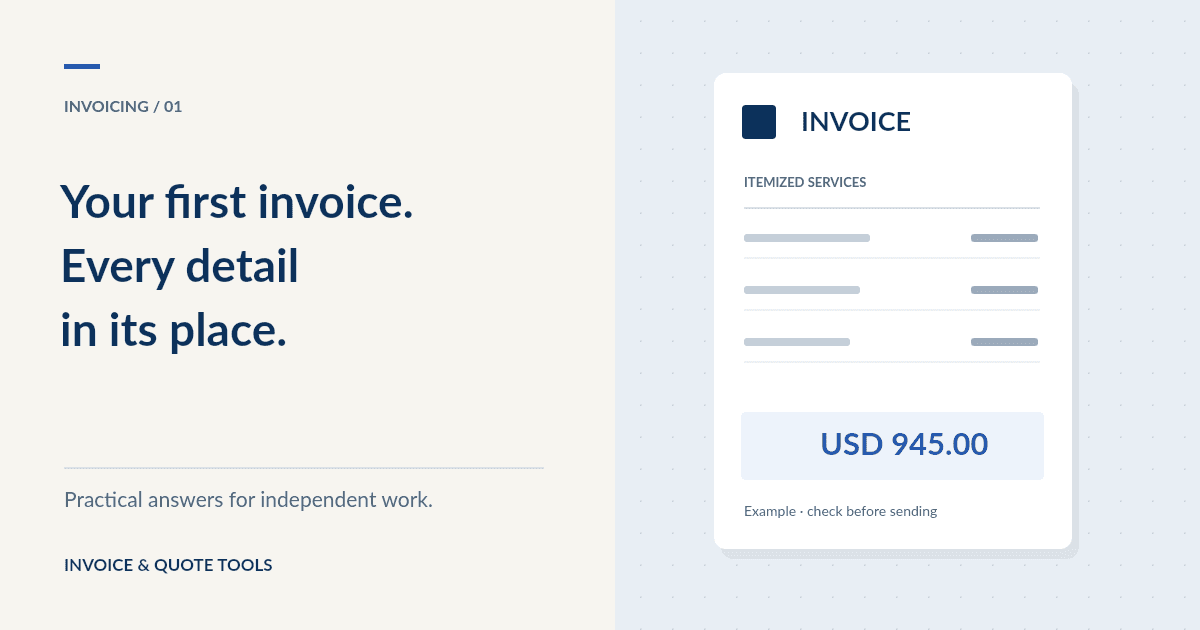
| Total due | USD 945.00 |
Add invoice 2026-014, an issue date of 1 November 2026, and an agreed deadline of 16 November 2026. Payment instructions might read: “Pay USD 945.00 by bank transfer by 16 November 2026. Use reference 2026-014.” Insert your real, verified payment details before sending.
7. Create and review the PDF
Open our free invoice generator and enter your business and customer details. Add your invoice reference, dates, currency, and line items, then enter any appropriate discount and tax. Put payment instructions in Payment terms; add a project reference or service date through customization if needed.
You can compare the five invoice templates, add a PNG or JPG logo, and select A4 or US Letter. The live preview updates while you work. Use Review PDF to check the actual pages, especially if your invoice contains many items or long notes. Then choose Download PDF. No account is required.
The editor saves a draft in the current browser. It does not email the invoice, record payment, or keep a cloud archive. Keep the downloaded file somewhere you control. If you load the explicit example, start a new invoice with your own information before exporting; example invoices are deliberately blocked from download.
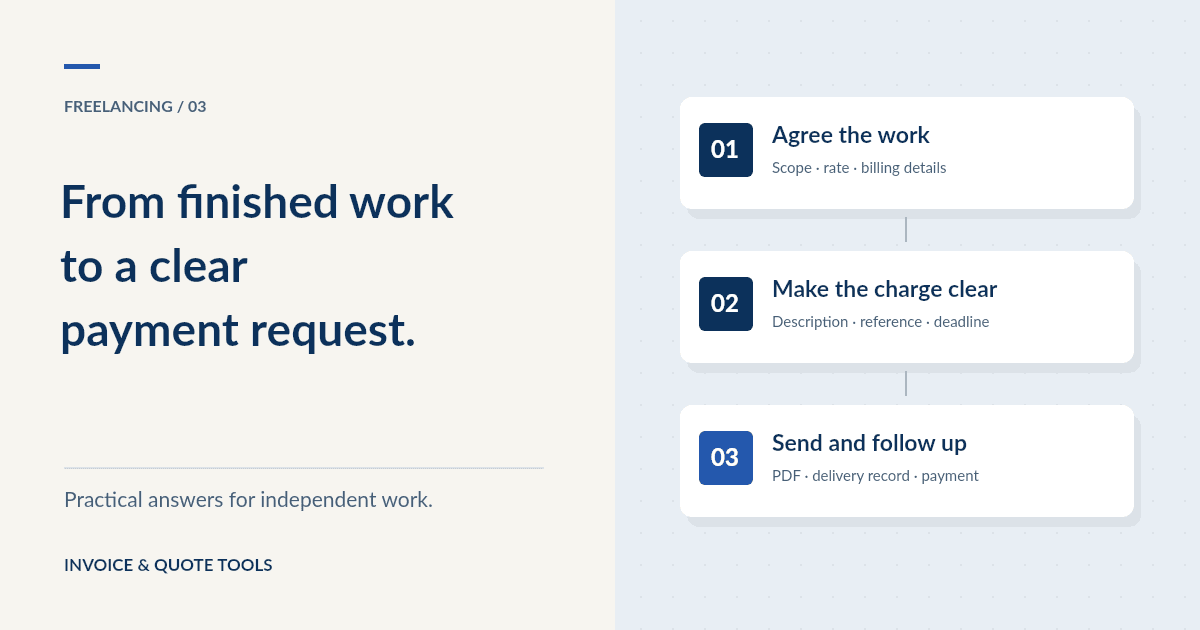
8. Send it and keep a record
Send the PDF to the agreed billing contact, not just the person who requested the work. Include the reference, amount, deadline, and a short explanation of the billed milestone in the email. Ask whether the client requires a supplier portal or purchase-order attachment.
Save the sent PDF and record when and where it was delivered. Track payment separately. If it becomes overdue, check for billing errors or an approval hold before sending a reminder. For a practical sending and follow-up workflow, read how to invoice a client as a freelancer.
Common mistakes to catch before sending
- Reusing an invoice number or leaving a sample customer name in the document.
- Sending to a project contact while accounts payable expects a different address.
- Omitting a purchase order, service period, or agreed milestone.
- Showing one deadline in the dates and a different one in the payment terms.
- Applying a discount twice or charging tax without checking the applicable treatment.
- Assuming a saved browser draft is a permanent archive or evidence of payment.
Read the final PDF as the recipient. Can they identify the work, approve the amount, and pay without guessing? If so, your invoice is ready for the next step.
Put the guide into practice.
Create an invoice with your details, choose a professional template, and download your PDF. Free, with no signup.
Create Your Free InvoicePractical guides to using invoices and business documents. Examples are illustrative. Tax, invoicing and payment rules depend on your location and circumstances; check the linked official guidance for your situation.